Speaker and room measurement
AcoustiTrack


In development — not released yet.
Find out what your room is doing to your sound — where it boosts, where it dips, and how far away things actually are.
Hear the room. See the room.
In development · macOS, Apple Silicon & Intel
Its own application · dB SPL after calibration
For the people who make a room sound right.
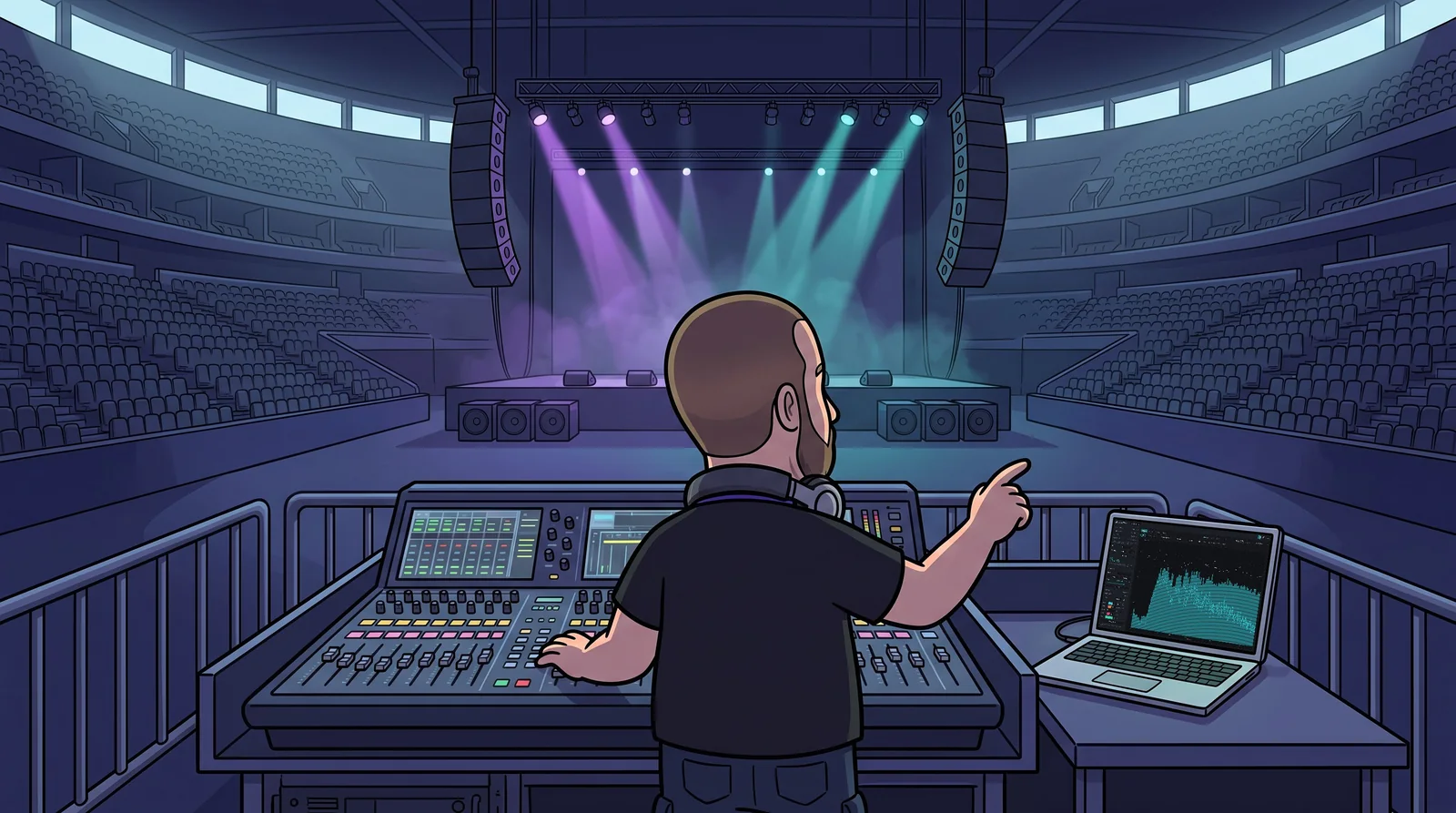
AcoustiTrack is a measurement application for the Mac, made for live and studio engineers, system technicians and anyone who tunes a room. It plays a known test signal, listens with up to eight measurement microphones, and shows what the loudspeakers and the room did to the sound — in level, frequency, phasePhase Timing of each frequency relative to the reference, in degrees. Used to align loudspeakers. More in the dictionary and time.
The jobs are the everyday ones: tune a PA before doors, line up delayDelay Time offset between reference and microphone, in ms or as an equivalent distance. Used to time-align loudspeakers. More in the dictionary speakers and subwoofers with the main system, find where a room boosts or swallows the low end, check a change against how it was before, and keep an eye on sound levels through a show.
A session follows the same path every time. Calibrate the microphone with an acoustic calibratorAcoustic calibrator Device that plays a known level (94 or 114 dB at 1 kHz) into a microphone, so levels read in dB SPL. More in the dictionary so levels read in dB SPLdB SPL Sound pressure level: the loudness in the room on the standard scale, relative to 20 µPa. More in the dictionary. Measure with pink noisePink noise Noise with equal power in every octave. The standard test signal for tuning a system. More in the dictionary or a sweepSwept sine A test tone gliding from low to high frequency, deconvolved into the impulse response. More in the dictionary. Compare positions, microphones and captures. Then keep the job in its venue folder and export a report with your own logo.
Setting up a PA
1 · Calibrate
Put the calibratorAcoustic calibrator Device that plays a known level (94 or 114 dB at 1 kHz) into a microphone, so levels read in dB SPL. More in the dictionary on the capsule and press Calibrate. Every level now reads in dB SPLdB SPL Sound pressure level: the loudness in the room on the standard scale, relative to 20 µPa. More in the dictionary.
2 · Align
Find the delayDelay Time offset between reference and microphone, in ms or as an equivalent distance. Used to time-align loudspeakers. More in the dictionary to each loudspeaker and set it in your processor, so subs, fills and mains arrive together.
3 · EQ
Read the transfer functionTransfer function What the system does to the signal at each frequency: output compared with input, as gain and phase. More in the dictionary against a target curveTarget curve The response shape a tuned system aims for, such as flat, a house curve or the cinema X-curve. More in the dictionary and set the system EQ where the room needs it.
4 · Verify
Capture before and after. The Compare view shows exactly what changed; save the readout with the job.
The four views.
Spectrum
When something sounds wrong — a ring, a boom, a harsh edge — the first question is where in the spectrum it lives. Spectrum answers it live, while the band plays or the test signal runs.
On screen are fractional-octaveOctave and fractional-octave bands Frequency bands of equal musical width — an octave or a fraction of one — as the ear hears them. More in the dictionary bands, from whole octaves down to 1/48 octave, with the narrowbandNarrowband spectrum The spectrum at full FFT resolution, one point per bin, without grouping into bands. More in the dictionary trace and peak holdPeak hold A trace holding the highest level each band has reached since the last reset. More in the dictionary drawn over them — in dB SPLdB SPL Sound pressure level: the loudness in the room on the standard scale, relative to 20 µPa. More in the dictionary once the microphone is calibrated. Underneath, the spectrographSpectrograph Frequency against time, with level as colour. Shows how the spectrum changes. More in the dictionary draws the same signal over time, newest at the top, so a resonance that comes and goes leaves a trail you can point at.
Track peak marks the most prominent peak and names its musical note, so ringing out monitors and hunting feedback becomes reading a frequency rather than guessing one.
Transfer Function
A loudspeaker in a room never plays back exactly what you send it. Transfer FunctionTransfer function What the system does to the signal at each frequency: output compared with input, as gain and phase. More in the dictionary compares the signal going into the system with what the microphone hears, so you see the system and the room rather than the music.
MagnitudeMagnitude Gain per frequency of the transfer function, in dB. 0 dB means unity gain relative to the reference. More in the dictionary shows where the system is loud or quiet across the frequency range, phasePhase Timing of each frequency relative to the reference, in degrees. Used to align loudspeakers. More in the dictionary shows how it behaves in time, and coherenceCoherence How consistently the mic signal follows the reference, 0 to 1. High supports the reading; it is not proof of accuracy. More in the dictionary fades the trace wherever noise, too little test signal or a response that changes while you measure makes the reading unreliable — it tells you how far to trust the reading at each frequency, not how good the system is. The live impulse responseImpulse response The system's response to a single click: direct sound, reflections and decay, against time. More in the dictionary sits above, with its peak marked.
Find delayDelay Time offset between reference and microphone, in ms or as an equivalent distance. Used to time-align loudspeakers. More in the dictionary measures the timing to each microphone, and delay tracking follows it if it drifts. With subs, fills and mains arriving together, smoothingSmoothing Averaging a response over 1/N octave around each frequency, to show its overall shape. More in the dictionary and a target curveTarget curve The response shape a tuned system aims for, such as flat, a house curve or the cinema X-curve. More in the dictionary — flat, X-curve, a house curve or your own — show what the system EQ needs to do.
Compare
Every change to a system raises the same question: did that help? Compare answers it with a measurement instead of a memory.
Store a measurement as a capture, make your change and measure again. Compare subtracts one from the other and draws a single trace around zero — louder above the line, quieter below.
Use it for before and after an EQ move, for two seats in the same room, or for two loudspeakers of the same model. Captures can also be overlaid and shifted up or down to compare their shapes.
Impulse Response
A room is more than its frequency responseTransfer function What the system does to the signal at each frequency: output compared with input, as gain and phase. More in the dictionary. How long the sound hangs, and how much of it arrives early enough to be clear, decides whether speech carries and music stays tight.
A swept sineSwept sine A test tone gliding from low to high frequency, deconvolved into the impulse response. More in the dictionary gives the room's impulse responseImpulse response The system's response to a single click: direct sound, reflections and decay, against time. More in the dictionary, with its arrival marked and the decay curveSchroeder curve Smooth decay line from the backward-integrated impulse response; the decay times are read off it. More in the dictionary drawn over it. From it AcoustiTrack works out decay timeRT60 Time for sound in a room to die away by 60 dB after the source stops. Longer means more reverberant. More in the dictionary per octave bandOctave and fractional-octave bands Frequency bands of equal musical width — an octave or a fraction of one — as the ear hears them. More in the dictionary — T20T20 Reverberation time measured on the decay from −5 to −25 dB and scaled up to 60 dB. More in the dictionary and EDTEDT Reverberation from a fit to the first 10 dB of decay, scaled to 60 dB. Tracks perceived reverberance. More in the dictionary on the Schroeder curve — and clarity and definition: C50C50 Early (first 50 ms) to late sound energy, in dB. The clarity figure for speech; higher is clearer. More in the dictionary, C80C80 Early (first 80 ms) to late sound energy, in dB. The clarity figure for music. More in the dictionary, D50D50 Share of the total sound energy arriving in the first 50 ms, as a percentage. Higher favours speech. More in the dictionary and centre timeCentre time When, on average, the sound energy arrives at a seat, in ms. Lower values mean a clearer sound. More in the dictionary, side by side in the All Bands table.
Use it to describe a room before treating it, to compare a hall empty and full, or to put numbers on a speech complaint with STISTI Speech Transmission Index: 0 to 1 score for how intelligible speech is at a position (IEC 60268-16). More in the dictionary, %ALcons%ALcons Estimated percentage of consonants likely to be misheard. Lower is better; usually converted from the STI. More in the dictionary and STIPASTIPA STI measured with a modulated test signal played through the sound system (IEC 60268-16). More in the dictionary.
The details.
- Type
- Room measurement application
- Platform
- macOS · Apple Silicon + Intel · Windows planned
- Measures
- Transfer function · coherence · delay as distance · bands · live analyser
- Levels
- dB SPL once a microphone is calibrated with an acoustic calibrator; dBFS until then
- Delay finding
- Up to roughly 58 m; refuses rather than guesses
- Status
- In development
Release status
AcoustiTrack is still in development. There is no build-it-yourself route and no buy button — it will be sold, with a signed installer, once it is finished, and not before.